Al-Khandaq (الخندق) checks how well your computer is protected and tells you, in plain words, what needs your attention. This guide is for the person who installed it on their own computer, at home or in a small office.
Version 1.0. macOS 11 Big Sur or later, Windows 10 and 11, Windows Server 2019 and later, and Ubuntu 22.04, 24.04 and 26.04.
1. What Al-Khandaq does and doesn't do
Al-Khandaq has four parts:
- The agent, a background service. It runs the checks, keeps the history and makes any change you approve. On Windows it is the service "Al-Khandaq Security Posture Agent" (
Khandaq). On Ubuntu it iskhandaq-agent.service. - The app, the window you open from the Start menu or the Ubuntu app list. It shows what the agent found. It never changes anything on its own.
- The tray, a small program that starts when you sign in and shows notifications.
- The command-line tool,
khandaq.
What it does
- Checks four layers of your computer: hardware (TPM, Secure Boot, memory integrity), operating system (updates, Microsoft Defender, BitLocker or disk encryption, accounts, firewall settings), software (programs with known exploited flaws, programs past end of life, browser extensions, pending updates) and network (firewall, listening ports, Wi-Fi, DNS, proxy, hosts file, remote access).
- Gives a score and a verdict, and keeps checking in the background. Each check repeats on its own schedule, and a full scan runs when the agent starts.
- Explains each problem and how to fix it. Some problems have a one-click fix. You always see exactly what will change, and an administrator must approve it.
- Scans for malware with its own scanner (YARA-X rules), watches new files in your Downloads, Desktop, Temp and start-up folders, and can move flagged files into quarantine.
- Maps checks to published guidance: the ASD Essential Eight, Microsoft security baselines (Windows), the CIS Ubuntu benchmark (Ubuntu) and MITRE ATT&CK.
What it doesn't do
Be clear about these limits before you rely on it.
- It is not a full EDR (endpoint detection and response) product. It looks for common weaknesses and common signs of trouble. It does not record everything that happens on the computer, and it cannot find every kind of attack.
- On Windows it does not block files before they run. Microsoft Defender does that. Al-Khandaq checks that Defender stays on and up to date, and scans new files in a few folders after they are written. On Ubuntu, blocking a flagged program before it runs exists but is off by default; only an administrator can turn it on.
- A good result is not a guarantee. "Safe" means none of its checks found a serious problem. It does not prove the computer has not been attacked.
- Not everything can be checked. Some settings need administrator rights to read, some checks can take too long, and some things (for example multi-factor authentication or third-party backup software) are not visible from the computer at all. Al-Khandaq says so instead of guessing.
- The Essential Eight view is not a maturity assessment. It covers only part of what each strategy asks for.
- It updates itself from a signed update channel. An administrator can switch this off or make it ask first.
2. Install on macOS
What you need
- macOS 11 Big Sur or later, on an Apple silicon or Intel Mac.
- An administrator account for the installation.
- The installer,
Al-Khandaq-<version>.pkg, from https://www.al-khandaq.com/download/ or your IT team.
Install
- Open the
.pkgfile. It is signed with an Apple Developer ID and notarised by Apple, so macOS opens it without a warning. - Follow the installer and enter your Mac password when asked.
The installer:
- puts Al-Khandaq in the Applications folder;
- installs and starts the background service, which starts with the Mac and restarts itself if it stops;
- starts Al-Khandaq in the menu bar now, and again at every login;
- adds you to the
khandaqgroup (you may see the results) and, if you are an administrator, tokhandaq-admin(you may also approve fixes).
Give it Full Disk Access
macOS keeps Desktop, Documents and Downloads private until you allow access. For complete malware scans:
- Open System Settings, then Privacy & Security, then Full Disk Access.
- Turn on khandaq-agent. If it is not in the list, choose +, press Cmd+Shift+G, type
/usr/local/libexec/al-khandaq/khandaq-agentand choose Open.
Until you do, the Overview shows a finding with an Open Full Disk Access button that takes you to that page. Access works at once; no restart is needed.
Other people who use the Mac are not added. To let another user see the results, run sudo dseditgroup -o edit -a <user> -t user khandaq. Add them to khandaq-admin only if they should approve changes.
Managed Macs can use Al-Khandaq-Agent-<version>.pkg: the background service and the khandaq command, without the app.
3. Install on Windows
What you need
- Windows 10 or 11, or Windows Server 2019 or later, 64-bit (x64).
- An administrator account for the installation.
- The installer,
AlKhandaq-<version>-x64.msi, from https://www.al-khandaq.com/download/ or your IT team. - On Windows Server, the app needs the Microsoft Edge WebView2 Runtime (Evergreen). The agent, tray and command-line tool work without it.
Install
- Double-click the
.msifile. - If Windows shows "Windows protected your PC" with "Unknown publisher", the installer is not code-signed. The Windows installer for version 1.0 is not code-signed yet; signing is on its way. Continue only if you downloaded it from al-khandaq.com or got it from your IT team, and its checksum matches the one on the Download page: choose More info, then Run anyway. Smart App Control or your organisation's application control may block an unsigned installer completely.
- Read and accept the licence on the welcome page.
- Approve the Windows administrator (UAC) prompt.
- On the last page, tick Open Al-Khandaq if you want to start the app now.
The installer:
- installs to
C:\Program Files\Al-Khandaq\(you can't choose another folder; this keeps the service files writable by administrators only); - installs and starts the service, which starts automatically with Windows and restarts itself if it stops;
- starts the tray for every user at sign-in;
- adds an Al-Khandaq shortcut to the Start menu;
- adds
khandaqto the systemPATH, so it works in any new terminal.
Al-Khandaq needs no key and no account. (Organisations that deploy it centrally: see the administrator guide.)
4. Install on Ubuntu
What you need
- Ubuntu 22.04, 24.04 or 26.04, 64-bit (amd64).
- An account that can use
sudo. - The packages from https://www.al-khandaq.com/download/ or your IT team:
khandaq_<version>-1_amd64.deb: the agent, thekhandaqcommand and the notifier;khandaq-desktop_<version>-1_amd64.deb: the app (desktops only);install.shandSHA256SUMS-linux.txt, if you received them.
Install
In a terminal, in the folder with the files:
sudo ./install.shThis checks the files against SHA256SUMS-linux.txt, then installs khandaq and, on a desktop, khandaq-desktop. Only Ubuntu's own dependency packages are downloaded. Use sudo ./install.sh --server on a server without a desktop. Run it with sudo, not from a root shell.
Without install.sh:
sudo apt install ./khandaq_1.0.0-1_amd64.deb ./khandaq-desktop_1.0.0-1_amd64.debThe package:
- starts
khandaq-agent.serviceand enables it at boot; - creates two groups:
khandaq(may see the results) andkhandaq-admin(may also approve fixes); - adds the user who ran
sudoto both groups.
Log out and back in after installing, so the new groups apply. Until then the app may not be able to reach the agent.
Other people who use the computer are not added. To let another user see the results, run sudo usermod -aG khandaq <user>. Add them to khandaq-admin only if they should approve changes.
On Ubuntu the tray icon appears where the desktop shows status icons (for example with the AppIndicator extension), and the notifier shows desktop notifications (see Tray icon and notifications).
5. The first run
The first time you open the app, the welcome screen takes you through three steps.
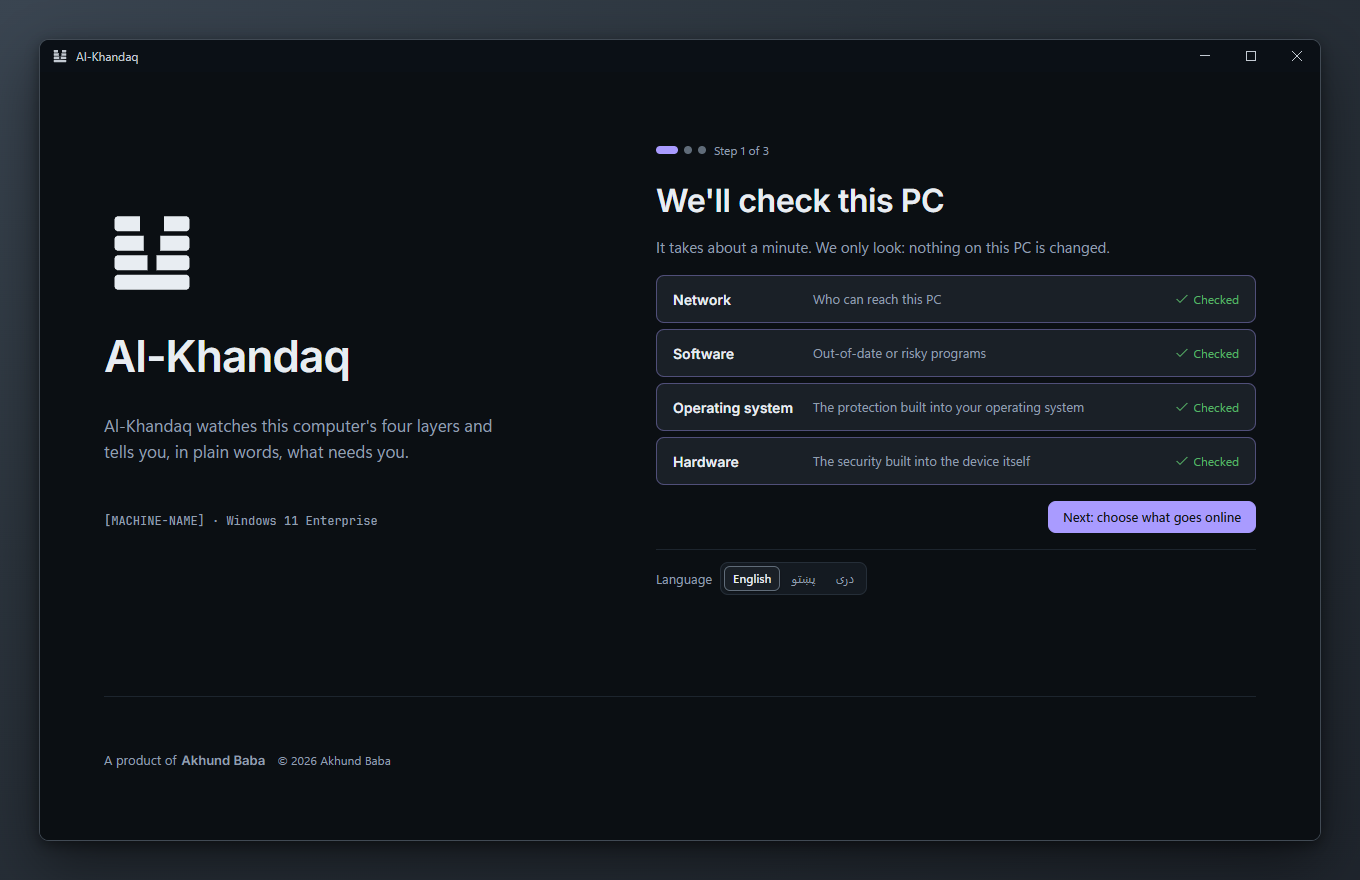
- We'll check this PC. The screen shows what gets checked: who can reach this PC, out-of-date or risky programs, the protection built into the operating system, and the security built into the device. Choose Check this PC now. It takes about a minute, and nothing on the computer is changed.
- Look up known problems online? Choose Yes, look them up online to send the names and versions of your programs to a public database of known flaws (NVD; OSV.dev on Ubuntu), or No, keep it on this PC to use only the signed data Al-Khandaq downloads. See every connection Al-Khandaq makes opens the full list. You can change this at any time in Settings → Privacy. If your organisation manages this setting, the screen says so.
- Your result. The score, and the one thing to fix first if anything needs you. Choose Show me how to fix it or Go to the overview.
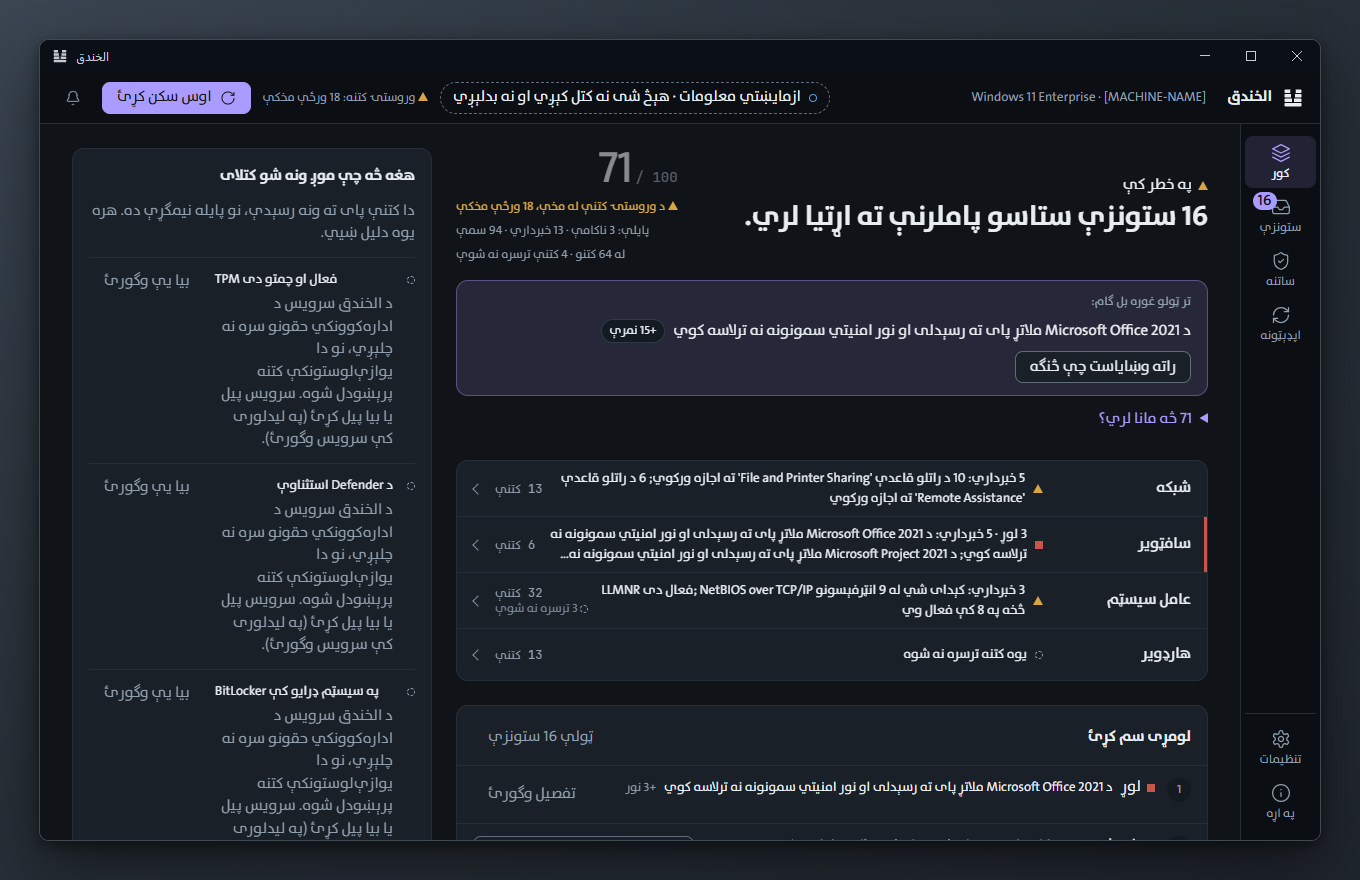
To change the language (English, پښتو or دری), go to Settings.
If protection isn't running yet, the welcome screen offers to start it, or you can carry on and start it later (see the app says the background service isn't running).
To see the welcome screen again, go to Settings, then Welcome screen, then Show it again.
6. Free for personal use
Al-Khandaq is free for personal and home use. You don't need a key or an account. Everything on your own computer works: checks, the score, malware scans, one-click fixes, installing updates, hardening profiles and undo.
Making a change still needs an administrator to approve it (see Read a finding and fix it). That protects the computer; it has nothing to do with payment.
If Al-Khandaq helps you, you can support it: see https://www.al-khandaq.com/donate/.
Organisations that look after many computers can get an organisation key for extras such as signed compliance reports. Write to info@akhundbaba.af. How keys work is in the administrator guide. Settings, then Licence, shows whether a key is installed; without one, nothing on your computer is limited.
7. Read the Overview screen
The Overview is the first screen. Press Alt+1 to return to it from anywhere.
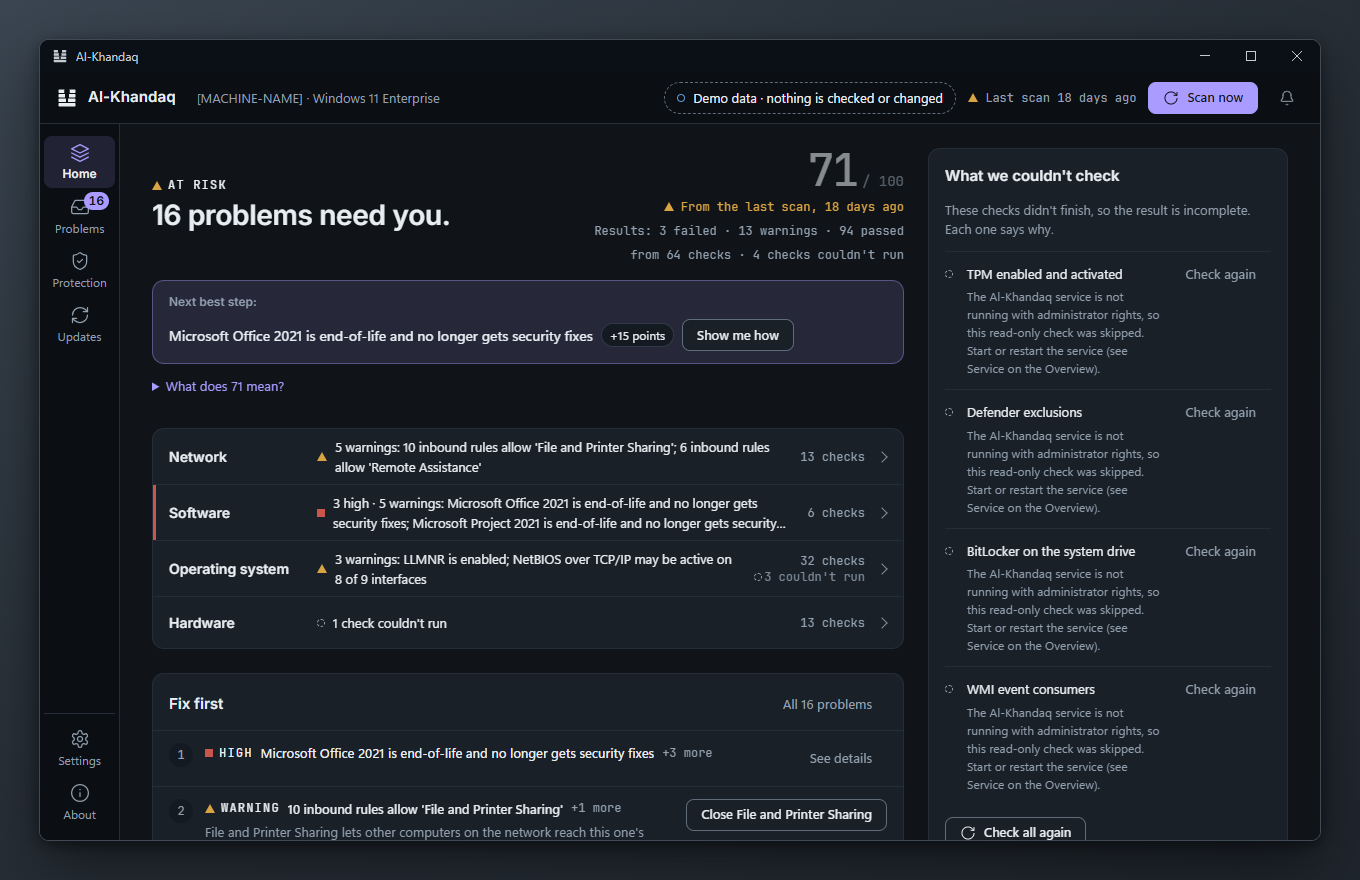
The score
The number out of 100 is the security score. It starts at 100 and each check with a problem takes points off:
| Problem | Points lost if it failed | Points lost if it is a warning |
|---|---|---|
| Critical | 30 | 15 |
| High | 15 | 7 |
| Medium | 6 | 3 |
| Low | 2 | 1 |
| Info | 0 | 0 |
A check only ever costs its single worst problem. For example, a check that finds ten open ports costs the same as one that finds a single open port.
These cost nothing: checks that passed, checks that couldn't run, and problems a person accepted.
Under the score you see "n failed · n warnings · n passed", and, when it applies, "n checks couldn't run".
The verdict
Above the headline is one of these verdicts:
| Verdict | Headline | What it means |
|---|---|---|
| Critical | A critical problem needs you now. | At least one Critical check failed. |
| At risk | n problems need you. | A High check failed, or a High or Critical check gave a warning, or the score is under 80, or someone accepted a High or Critical problem. |
| Incomplete | We couldn't check everything. | Nothing known is wrong, but an important check couldn't run, or checks that need administrator rights were skipped. |
| Safe | Nothing needs you right now. | None of the above. |
| Offline | The background service isn't running. | The app can't reach the agent. |
Things to know:
- A known problem outranks not knowing. If the computer is at risk and some checks couldn't run, the verdict is At risk.
- Safe can still include small problems. Medium or Low failures allow Safe as long as the score is 80 or more. Check the Findings screen for them.
- Accepting a High or Critical problem stops it lowering the score, but not the verdict. The verdict stays At risk.
- Incomplete is never shown as Safe, in the app or in notifications.
Why "couldn't check" matters
A check that couldn't run is not a pass. It means Al-Khandaq doesn't know. The setting might be fine, or it might be the problem. That is why an important check that couldn't run makes the verdict Incomplete instead of Safe.
The What we couldn't check card on the right lists these checks. In the Findings screen, use the Couldn't check filter to see each one and why it didn't run.
Common reasons:
- It needs administrator rights (Windows) or root (Ubuntu). The top bar says "n checks need administrator rights" or "n checks need root".
- It took too long. Each check has a time limit, usually 30 seconds. The finding says "Took too long (over 30 s); stopped waiting for it".
- It can't apply here. For example, attack surface reduction rules are reported as couldn't check when Microsoft Defender is not the active antivirus.
Run with administrator rights for full results
The installed service runs as SYSTEM on Windows and as root on Ubuntu, so it can run every check. Look at the This computer card: Rights should say Administrator and Service should say Running with a version number.
If Rights says Standard user, the agent is not running as the installed service, and administrator-only checks are skipped. Start the service (see the app says the background service isn't running). Opening the app as administrator does not change this, because the checks run in the agent, not in the app.
The rest of the Overview
- The four layers: Network, Software, Operating system, Hardware. Each shows its problems or "All clear". Select a layer to see its findings.
- Fix first: the top three problems in the order Al-Khandaq recommends (see Fix first). Choose Full list to open the Expert screen.
- Since the last scan: problems that are NEW since the previous scan, and how many are unchanged.
- Think you've been hacked?: opens the incident page (see If you think you've been hacked).
- This computer: system, role (laptop, desktop, server or domain controller), how many checks ran, how long the last scan took, rights and service version.
The top bar shows when the last scan ran. Scan now asks the agent to run all checks again; results replace what you see when it finishes.
8. Read a finding and fix it
Open Findings (Alt+2), or select a problem on the Overview.
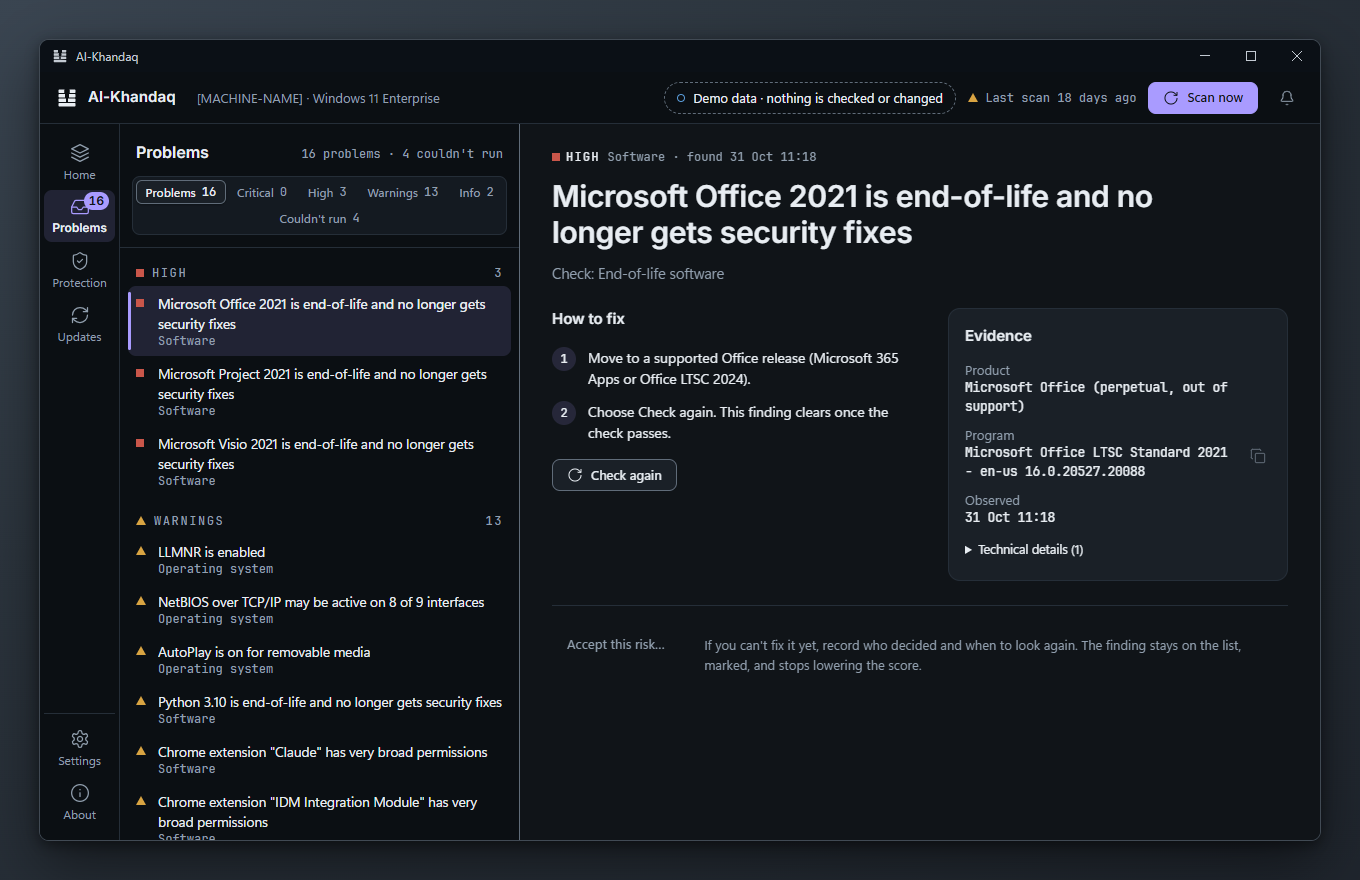
The list
Each finding has a level:
- Critical, High, Warning: problems, worst first.
- Info: worth knowing, not a problem.
- Couldn't check: the check didn't run.
Checks that passed are not listed here; the layer cards on the Overview name some of them, and khandaq scan -v lists them all.
Filter with All, Critical, High, Warnings (includes Info), Couldn't check and Decided ◆ (problems someone accepted; shown only when there are some). Accepted problems appear only under Decided ◆.
The finding detail
Select a finding to see:
- What was found, the layer and when.
- How to fix: numbered steps. Many findings only have written steps, which you follow yourself. Some also offer a fix button, for example Run a quick scan, Quarantine file or an update install.
- Check again: re-runs just this check. The finding clears once the check passes.
- Evidence: exactly what the check saw.
- Standards and attack techniques: where this problem ranks in Fix first, a note for your kind of computer, the Essential Eight strategy and level, the baseline setting and MITRE ATT&CK techniques. "References say what the check stands for; they are not a compliance result."
Fix a problem: plan, approve, apply
Every change goes through the same three steps. Nothing changes until an administrator approves.
- Plan. Choose the fix button. A panel opens: "Plan · nothing changed yet". The agent works out what would change. Planning itself changes nothing.
- Review. The plan lists each change in order, with the old and new value. It warns you if a restart may be needed ("Restart may be needed. We'll ask before restarting.") and shows when the plan expires. If nothing needs to change, it says so.
- Approve. Choose Approve and apply, or Cancel.
- Apply. The panel shows progress item by item. You can choose Stop after the current item. At the end you see the result: Succeeded, Partly succeeded, Failed or Stopped.
Every applied change is written to History, with who approved it and when. The agent checks again afterwards, so the finding updates.
What administrator approval means
Only a local administrator can approve a change. The agent checks this itself; the app cannot get around it.
- Windows: approving needs administrator permission. If you are a standard user, or an administrator with UAC on, Windows shows a UAC prompt. A small Al-Khandaq window, "Al-Khandaq: approve a change", then asks you to confirm. If you cancel, nothing changes ("Administrator approval was cancelled. Nothing was changed.").
- Ubuntu: members of the
khandaq-admingroup, and root, can approve. The installer adds the user who ransudoto that group. Other users are asked for an administrator's password.
The name recorded as approver is the Windows or Ubuntu account that approved the change.
Undo
Most fixes do not have an Undo button. Read the plan carefully before you approve it. These can be reversed:
- a hardening profile: Undo this run on the Expert screen (see Hardening);
- a quarantined file: Restore quarantined file (see Scan for malware and use quarantine);
- an accepted risk or expected item: Undo this decision.
Deleting a quarantined file cannot be undone. An installed update is not rolled back by Al-Khandaq; use Windows Update history or your package manager.
Sign-in, start-up programs and home basics
Some checks look at how you sign in and what starts with your computer:
- Screen lock and sleep lock. Your screen should lock after 15 minutes or less, and Windows should ask for your PIN or password when it wakes. Both can be fixed from the app and undone.
- Automatic sign-in, password policy, Windows Hello. A password stored for automatic sign-in can be read by anyone with administrator rights. Windows Hello (PIN, face or fingerprint) is tied to this computer and is safer than a password alone. For your email and bank, also turn on two-step sign-in or passkeys on their websites; Al-Khandaq cannot see those.
- Password manager. This is advice only. If no password manager is found, the finding is an information item and does not lower your score.
- Start-up programs and hidden places. Al-Khandaq lists programs that start or load by themselves, including less common places malware uses (image hijacks, Winlogon, COM classes, LSA packages, print monitors; on Ubuntu SSH keys, PAM and shell start-up files). Each entry shows who signed the file. Signed entries are listed for review; an unsigned file in a folder users can write to is a warning. When a new entry appears later, the Changes view on the Expert screen tells you.
- Backups. OneDrive sync is not a backup: if you delete a file or ransomware encrypts it, the change syncs too. Keep 3 copies of important files on 2 kinds of storage, with 1 away from the computer, for example File History to an external disk you unplug. System Restore points help undo a bad update or driver.
- Find My Device is checked on laptops only.
- Out-of-date programs with known flaws. For about 60 common programs (browsers, PDF readers, Zoom, 7-Zip, WinRAR, Java, Python, Node.js, Git, VS Code, PuTTY, TeamViewer and others) Al-Khandaq looks up published vulnerabilities for the exact version you have. A finding says, for example, "Update Python 3.10.6: closes 25 CVEs". Flaws attackers are already using come first. Press Fix to update it with winget, or update it from the program's own menu.
- Dangerous drivers. Some old hardware drivers have flaws attackers use to switch off security software. If one on your computer is on the public LOLDrivers list, you see it with the file name. Turn on the vulnerable driver blocklist and memory integrity (the Fix button does the first), and update or remove the program that installed it.
- Breach check (you choose). In Settings → Breach check you can check whether a password appears in known data breaches, using Have I Been Pwned. It is off until you turn it on. Your password is scrambled on your computer and only the first 5 characters of the scrambled code are sent, so the service never learns the password. Nothing is saved. Checking an email address needs your own paid key from haveibeenpwned.com.
- Router. If your router lets programs open ports to the internet by themselves (UPnP), you see which ports are open. Turn UPnP off in the router's settings unless a game console or app needs it.
9. Accept a risk you can't fix yet
Sometimes you can't fix a problem right away, or it is there on purpose. You can record that decision.
- Open the finding.
- Choose Accept this risk….
- Check Who decided, add Why (optional), and set Ask again on (30 days ahead by default).
- Choose Accept risk. If you are not an administrator, approve the administrator prompt.
What happens:
- The finding stays on the list, marked ◆ and "Accepted by" with the account name and date.
- It no longer lowers the score.
- An accepted High or Critical problem still keeps the verdict at At risk.
- The decision is recorded in History, under Decisions.
Things to know:
- The name recorded is the account that approved the decision, whatever you type in Who decided.
- On the review date the acceptance ends. The finding counts again, lowers the score again, and you decide again. The date is checked in UTC.
- Some checks don't name a single item. Then the decision covers every finding from that check, and the dialog warns you: "This check doesn't name the item, so the decision also covers n other findings from it."
On the Remote access screen, This is expected works the same way, for a remote-support tool your organisation installed on purpose. It defaults to asking again in 180 days.
To reverse either decision, open the finding and choose Undo this decision. "Decision removed. The finding counts again."
10. Use the Expert screen
Open Expert (Alt+3). It has four tabs: Fix first, Essential Eight, Hardening and Changes.
At the top, a line says what kind of computer Al-Khandaq thinks this is, and why, for example "This computer is a Laptop. It has a battery." This changes the order of Fix first and adds notes. It never hides a problem or changes the score.
If the screen says "Not available from this service", the agent is older than the app. Update the agent.
Fix first
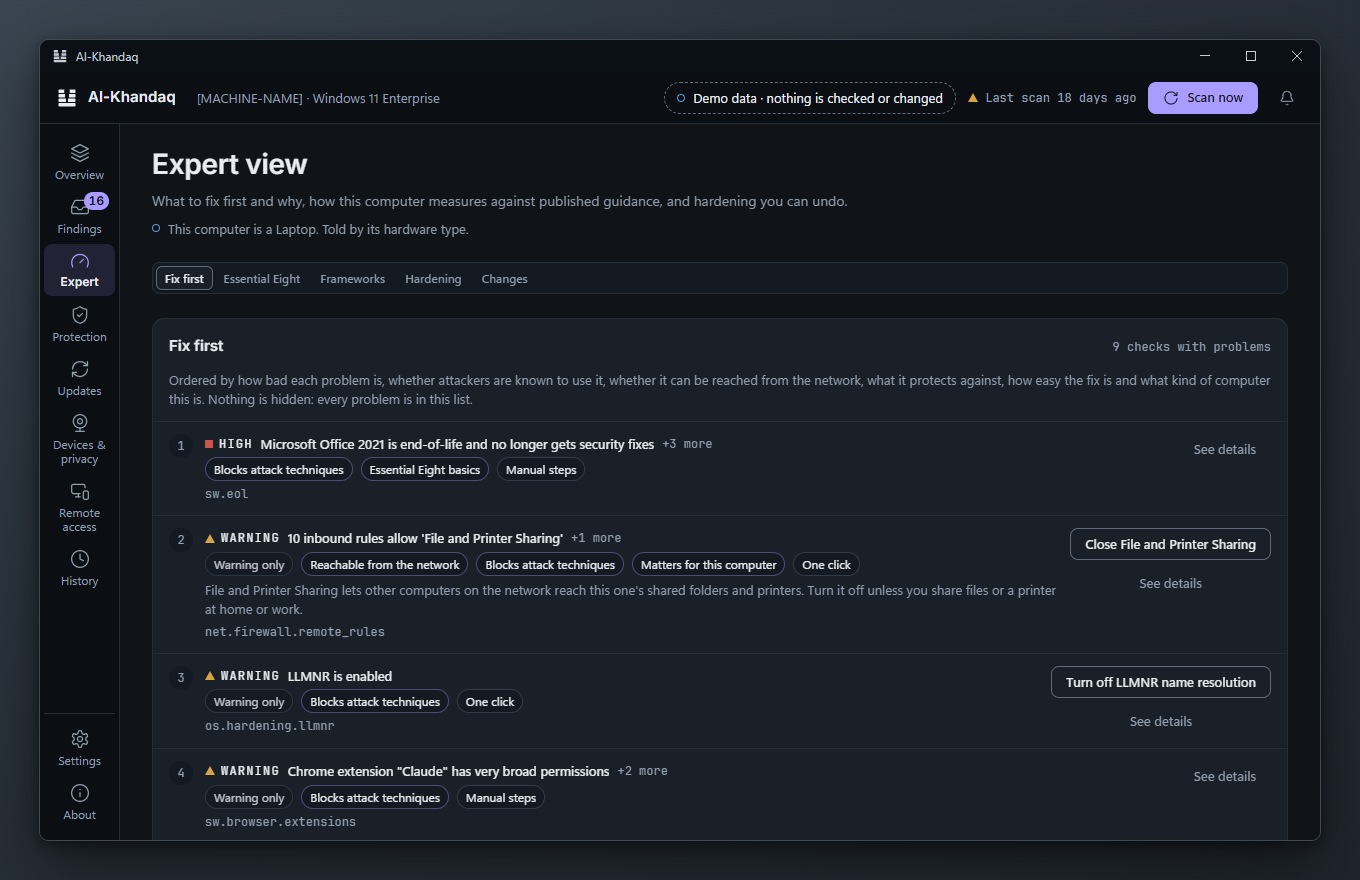
Every problem, one row per check, in the order Al-Khandaq recommends fixing them. Nothing is hidden.
The order depends on how serious the problem is and on reasons shown as chips:
- Attackers use this: a known exploited vulnerability.
- Reachable from the network.
- Blocks attack techniques: it protects against MITRE ATT&CK techniques.
- Essential Eight basics.
- Matters for this computer: for example, Remote Desktop matters more on a laptop than on a server.
- Warning only.
A second chip shows the effort: One click, Manual steps or Bigger job (firmware, hardware or reinstalling the operating system).
Each row has the fix button when there is one, and See details.
Essential Eight
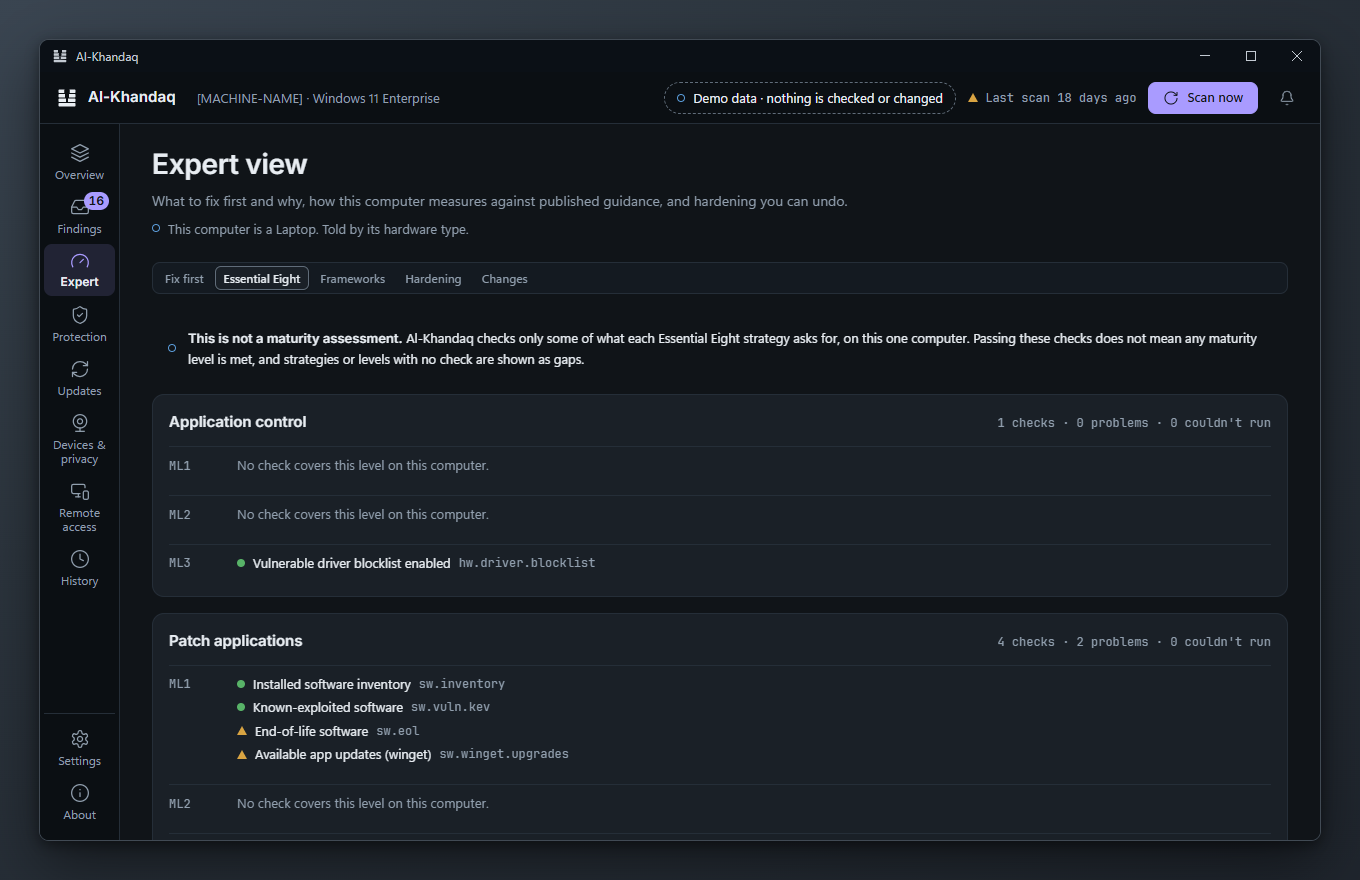
For each of the eight ASD Essential Eight strategies, this tab lists the checks that cover it on this computer, by maturity level (ML1, ML2, ML3), with their state: Pass, Problem, Accepted, Couldn't check or Not applicable.
Read the banner first: This is not a maturity assessment. Al-Khandaq checks only some of what each strategy asks for, on this one computer. Passing these checks does not mean any maturity level is met.
Gaps are shown, not hidden:
- Not checked here: no check covers the strategy. Multi-factor authentication is always shown this way, because it is mostly a service-side control.
- "No check covers this level on this computer." for a level with no checks.
Hardening
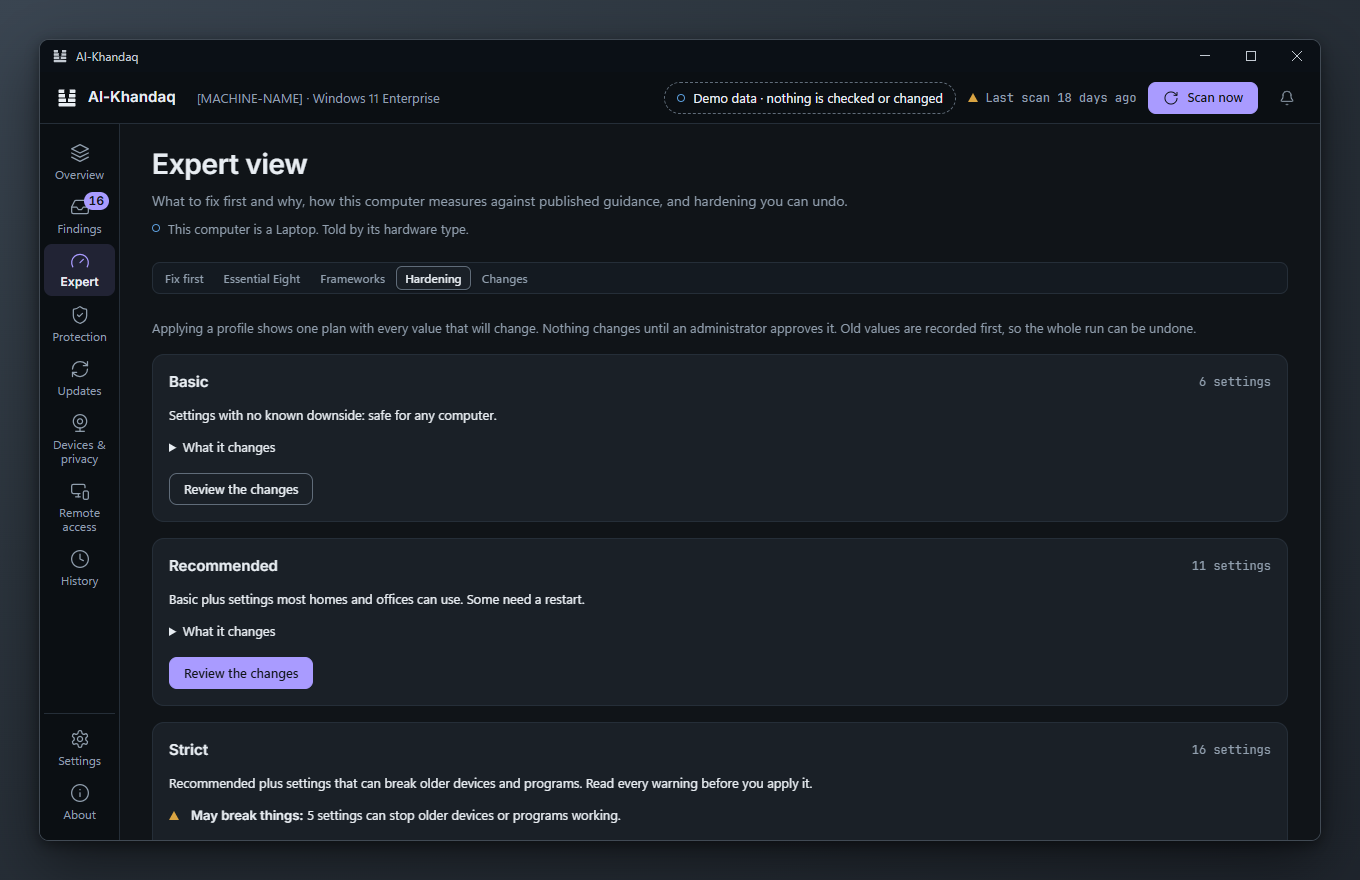
Hardening profiles change a set of well-understood Windows registry settings or Ubuntu kernel (sysctl) settings in one go. Each profile includes the one before it.
| Profile | What it is |
|---|---|
| Basic | Settings with no known downside: safe for any computer. |
| Recommended | Basic plus settings most homes and offices can use. Some need a restart. |
| Strict | Recommended plus settings that can break older devices and programs. Read every warning before you apply it. |
Open What it changes to see each setting, its exact location and value, and whether it needs a restart. Settings marked with a warning can stop older devices or programs working. Examples:
- Send NTLMv2 only; refuse LM and NTLM: old NAS boxes, printers and apps that only speak LM or NTLMv1 can no longer sign in.
- Block USB storage: USB drives, SD cards and phones in file-transfer mode stop opening for everyone on this computer.
- Do not route packets between networks (Ubuntu): Docker, LXD, virtual machines with NAT, VPN servers and Wi-Fi hotspots lose their network.
To apply a profile:
- Choose Review the changes on the profile.
- The plan lists only the settings that differ from the profile, each with its current and new value.
- Choose Approve and apply, and approve the administrator prompt.
Al-Khandaq records the old values before it changes anything. Applying a profile needs an administrator's approval.
To undo a profile: under Profile runs, find the run and choose Undo this run. The plan shows each setting going back to its old value (or being removed if it wasn't set before). Each run can be undone once.
Profiles deliberately leave out settings that can't simply be switched back, such as LSA protection with a UEFI lock, removing PowerShell 2.0, and BitLocker.
Changes
This tab lists Changes since things were last good:
- Got worse: a check that used to pass now fails or warns.
- Changed: a configuration check (administrators, hardening, firewall, DNS, proxy, hosts file, SSH, Defender exclusions, root certificates) still passes, but what it sees has changed. "Before:" shows the earlier value.
Problems found the first time are not changes. A change nobody planned can be the first sign of an intrusion, so look into each one. If you made the change yourself, you can ignore it.
11. If you think you've been hacked
On the Overview, in the Think you've been hacked? card, choose I think I've been hacked.
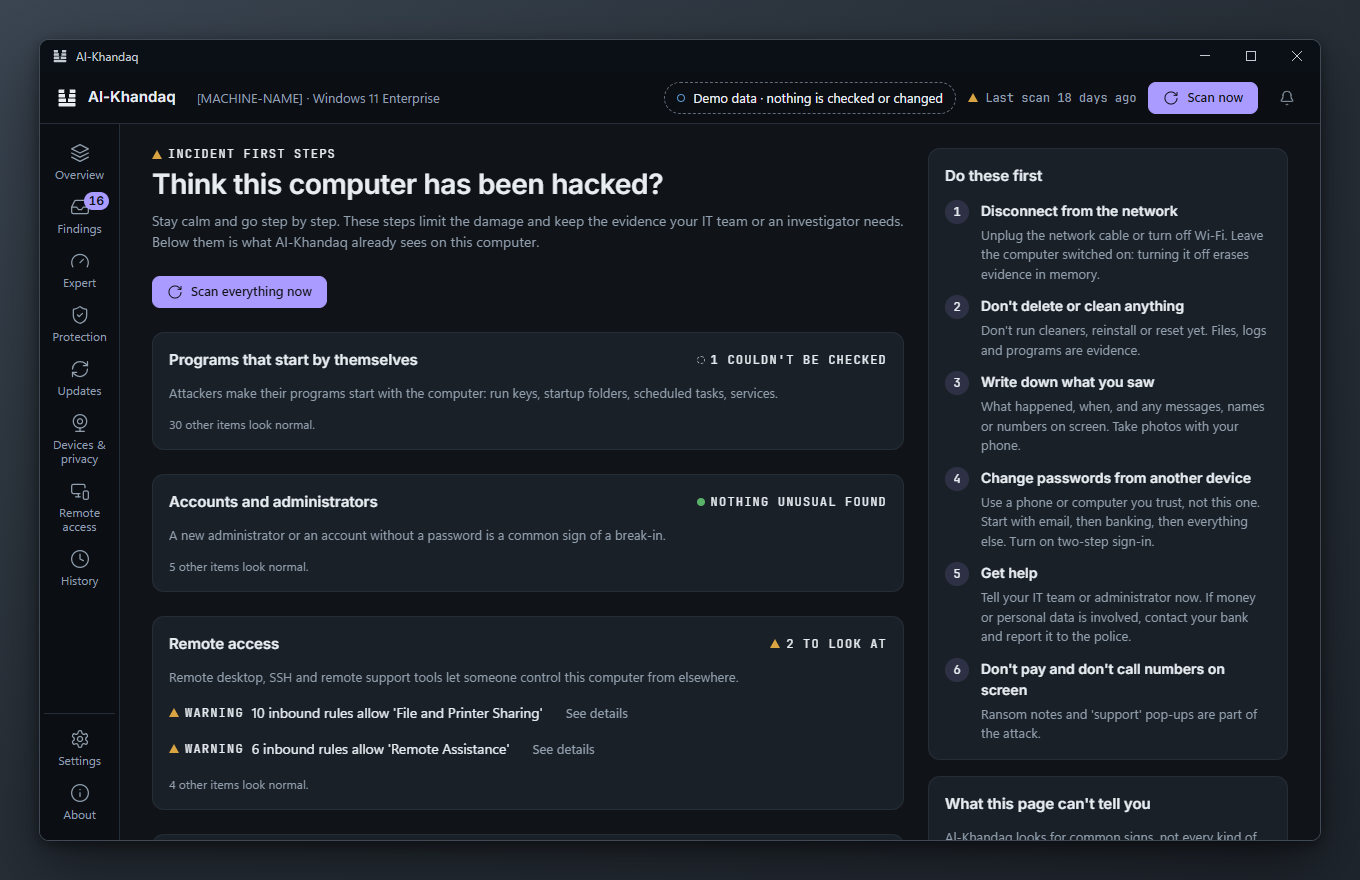
The page has three parts.
Do these first. Six calm steps:
- Disconnect from the network. Leave the computer switched on.
- Don't delete or clean anything.
- Write down what you saw.
- Change passwords from another device.
- Get help from your IT team or administrator.
- Don't pay and don't call numbers on screen.
What Al-Khandaq already sees. The latest findings, grouped:
- Programs that start by themselves
- Accounts and administrators
- Remote access
- Malware scan findings
- Listening ports and redirection
- USB devices
Each group says "n to look at", "Nothing unusual found", "n couldn't be checked" or "Not checked on this computer". Below that is What the monitors saw this week.
Scan everything now runs all checks again. This is the only button on the page that does anything; the page itself changes nothing.
Read What this page can't tell you: Al-Khandaq looks for common signs, not every kind of attack. If you still think something is wrong, treat it as real and get help.
12. Scan for malware and use quarantine
Open Protection (Alt+4).
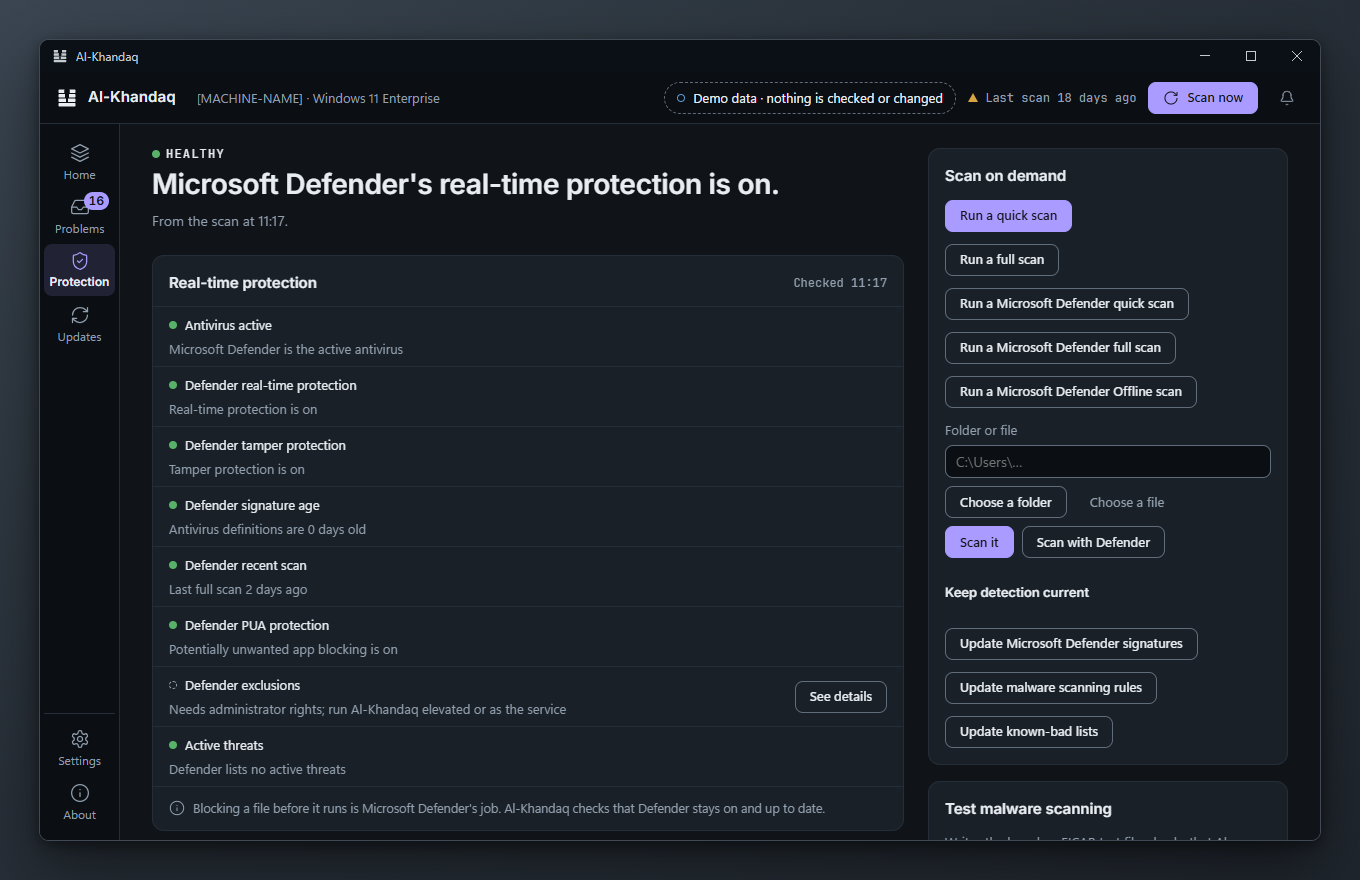
What protects you all the time
- Windows: Microsoft Defender blocks malware before it runs. Al-Khandaq checks that Defender is on, its real-time protection is on, it is up to date, and no risky folders are excluded. It also lists Defender's detections from the last 30 days.
- Al-Khandaq's file watch (Windows and Ubuntu): scans new and changed files in Downloads, Desktop, Temp and start-up folders right after they are written. It reports a match; it does not delete or move the file by itself.
- Ubuntu: Ubuntu has no built-in real-time malware protection. Al-Khandaq can block a flagged program before it runs, but this is off by default and only an administrator can turn it on.
Run a scan yourself
Under Scan on demand, choose:
- Run a quick scan: Downloads, Desktop, Temp, start-up folders, browser download folders and running programs.
- Run a full scan: every file on fixed drives, except folders only the operating system can read. This takes a long time and does not run at lower priority, so the computer may be slower while it runs.
- Run a Microsoft Defender quick scan (Windows).
- Update malware scanning rules: downloads the rule pack this version of Al-Khandaq uses from GitHub and checks it before installing.
Each scan is a plan you approve, like any other fix. On-demand scans need administrator approval. Files over 64 MB are skipped.
Quarantine and restore are not on this list. They act on one file, so you start them from that file's finding (see below). Scanning one folder or file, and deleting a quarantined file, are done from the command line by an administrator (khandaq actions).
The rule pack's age is counted from its release date. When the pack this version installs is more than 45 days old, the rules check warns "Update Al-Khandaq to get newer rules". There is no fix button for this: install a newer Al-Khandaq.
When a file is flagged
The finding Files flagged by Al-Khandaq scans lists each flagged file that is still on disk, the rule that matched and where it came from.
To quarantine it:
- Open the finding and choose Quarantine file.
- The plan shows the file, its size and SHA-256 fingerprint, and the quarantine folder.
- Approve it.
The file is moved into a locked folder where it can't run. If the file changed since it was detected, the plan stops and asks you to scan it again.
Restore a quarantined file
The finding Quarantined files lists what is in quarantine. To put a file back:
- Choose Restore quarantined file on the item.
- Approve the plan.
The file goes back where it was, after Al-Khandaq checks it is unchanged. On Windows, a restored file takes the permissions of its folder, not its original ones.
Restoring, quarantining and deleting need an administrator's approval. Only restore a file if you are sure it is safe; a rule match can be a false alarm, but it can also be real.
13. The other screens
- Updates (Alt+5): what is waiting, in three lists: system updates (Windows Update, or apt on Ubuntu), apps (winget, or snap and Flatpak), and on Windows Your own apps (apps installed only for your account). Each list says when it was read and whether it may be out of date.
- Tick or untick each update, then Install plans the ticked ones. The plan shows each item; nothing changes until you approve it.
- Skip this version hides one version until a newer one comes out. Pin never updates that app from Al-Khandaq. Both are listed under Skipped and pinned, with Offer again.
- While updates install, the panel shows each item (downloading, installing, done, failed) and Stop after the current item. Closing the panel does not stop the run; Show progress on Updates opens it again. Only one update run installs at a time; a second one waits.
- Your own apps update as you, without administrator approval.
- On a computer whose Windows updates are managed (WSUS, Windows Update for Business, Intune), Al-Khandaq lists them but does not install them.
- When updates install sets automatic installs (security updates, other updates), a time window, a delay for non-security updates, metered and battery behaviour, and restarts. Changing it needs administrator approval.
- Al-Khandaq restarts the computer only when these settings allow it (automatic restarts, or a restart deadline that has passed), never in the quiet hours, and with 30 minutes' warning. Otherwise it tells you a restart is needed and offers Restart in 10 min.
- Devices & privacy (Alt+6): apps that used the camera, microphone or location, privacy switches, and USB and Bluetooth devices.
- Remote access (Alt+7): remote-control tools such as TeamViewer, AnyDesk and RustDesk, employee-monitoring agents, and remote features built into the system. Finding one is not proof of harm; many are installed on purpose. Use This is expected for the ones you know.
- History (Alt+8): every change Al-Khandaq made (Changes), every decision a person recorded (Decisions), and what the monitors saw (Monitor events).
- Settings (Alt+9): language, digits (Pashto and Dari only), theme, the welcome screen, the licence, and the background service's version and connection. Scan schedule and notification rules can't be changed in the app yet.
14. Tray icon and notifications
Windows
The tray starts when you sign in. Its icon colour follows the verdict:
- green: Safe;
- amber: At risk;
- red: Critical;
- grey: Incomplete, or the agent isn't running.
Hover over it to see the verdict and score. Right-click for the menu:
- the score and verdict, and "n failed · n warnings · n passed · n couldn't run";
- Scan now;
- Open last report: a simple HTML report of the last scan;
- About Al-Khandaq;
- Quit.
Ubuntu
The tray icon has the same menu as on Windows. It shows where the desktop supports status icons (StatusNotifierItem; on standard Ubuntu with the AppIndicator extension). The notifier also sends desktop notifications. Each one has an Open report button. From a terminal:
khandaq-tray --scan-now
khandaq-tray --open-report
When you get a notification
- "Critical security problem", "Your computer is at risk" or "New security problem": the verdict got worse, or a new failure appeared. Several new problems come as one notification.
- "Some security checks couldn't run": the verdict became Incomplete.
- "Your computer is safe": at most once a day, only when the verdict is Safe and nothing failed.
You are not notified again about the same problem while it stays. If a problem goes away and comes back within 30 days, you are not notified again either.
The tray and notifier check the agent every 30 seconds. They use the language you chose in the app.
15. Privacy: what is stored and what leaves the computer
What is stored on the computer
| Where | What |
|---|---|
Windows: C:\ProgramData\Al-Khandaq |
Latest results, scan history database, audit log of changes, decisions, monitor events, logs, cached vulnerability data, quarantined files, malware scan logs (every file scanned and its SHA-256), licence |
Ubuntu: /var/lib/khandaq, /var/log/khandaq, /var/cache/khandaq |
The same |
Windows: C:\Program Files\Al-Khandaq\agent.toml; Ubuntu: /etc/khandaq/agent.toml |
Agent settings |
Windows: %LOCALAPPDATA%\Al-Khandaq; Ubuntu: ~/.local/state/khandaq |
Per user: tray log, notification state, last HTML report, chosen language |
The agent's folders can be read only by administrators (SYSTEM and Administrators on Windows, root on Ubuntu). Some of this data is personal: which apps used the camera or microphone, USB devices, remote sessions and file names.
What leaves the computer
Your scan results are not sent anywhere by default. Al-Khandaq sends results only if an administrator sets one of these up in agent.toml:
- a webhook: failed findings and monitor events are sent to the address the administrator chose;
- a fleet console: in version 1.0 this is a preview, and the agent does not report to it yet.
To do its checks, Al-Khandaq does contact some public services. These requests do not include your scan results. Settings → Privacy lists every connection, what it sends and whether it is on for this computer; the same list is in Every connection Al-Khandaq makes.
- Windows: it downloads the CISA list of known exploited vulnerabilities (at most once a day), and asks Windows Update for available updates.
- Windows programs, only if you allow it: on the first-run screen, or later in Settings → Privacy, you can allow Al-Khandaq to send the product name and version (for example "7-Zip 24.08") to the US National Vulnerability Database (NVD), at most once a day per program, and the CVE numbers found to FIRST.org (EPSS). It is off until someone allows it. While it is off, Al-Khandaq uses the signed content update. If it has none, the Vulnerable programs check says it is off, so don't read that as a clean result.
- Updates: every 6 hours by default it checks
downloads.al-khandaq.comfor new versions and content. That server sees your IP address and version. - Threat lists: it downloads the LOLDrivers list and malware-scan rules from GitHub. Nothing about your computer is sent. Fresh abuse.ch lists are downloaded only if you allow it (copies ship with the app).
- Breach check, only when you press Check: the first 5 characters of your scrambled password go to Have I Been Pwned; with your own key, the email address you typed.
- Ubuntu, only if you allow it: with "Send my program list" on, it sends the names and versions of installed packages to OSV.dev when the signed content update has no current Ubuntu vulnerability data (cached for a day).
- When you approve it: updating malware scanning rules downloads from GitHub, and installing updates uses Windows Update, winget, apt, snap or Flatpak.
- Your router: once a day the router check sends one UPnP search on your local network and, if the router answers, asks it which ports it has opened. This stays on your local network; nothing goes to the internet.
An organisation key is checked entirely on the computer. Nothing is sent to Akhund Baba. Without a key there is nothing to check.
To keep names out of what is sent elsewhere, choose Hide names under Settings → Privacy. Exports, webhook alerts, syslog and Event Log entries then show <user> and <host> instead of usernames, user folder paths and the computer's name.
16. Change the language
Go to Settings, then Language, and choose English, پښتو (Pashto) or دری (Dari).
- The first time, the app picks the language from your system settings: Pashto for a Pashto system, Dari for a Dari or Persian system, English otherwise.
- Pashto and Dari are shown right to left; the whole layout is mirrored.
- With Pashto or Dari, Digits lets you choose 0123 or ۰۱۲۳ for numbers in text. Scores, times and ids always use 0–9.
- The tray and notifications follow the language you choose in the app.
- Every screen, finding, check title and fix step is translated. Native Pashto and Dari speakers have reviewed the translations. If a term is still unclear, the English version is the reference.
17. Use the command line
The khandaq command runs checks without the app. On Windows, open a new terminal after installing so khandaq is on the PATH.
Run a scan
khandaq scanThis runs every check once, in the terminal, with your own rights, and prints the problems. It does not need the agent.
khandaq scan -v: also list passing and not-applicable findings.khandaq scan --domain os: only one layer (hardware,os,softwareornetwork).khandaq scan --only os.defender: only checks whose id starts with this.khandaq scan --json: the full report as JSON.khandaq scan --timings: how long each check took.
Run it from a terminal opened as administrator (Windows) or with sudo (Ubuntu) to include checks marked [admin]. Otherwise they count as couldn't check.
The exit code is 0 for Safe, 1 for At risk, 2 for Critical and 3 for Incomplete. A wrong option or argument exits with 64.
The score from khandaq scan can differ from the app's: it ignores accepted risks, and it runs with your rights rather than the service's.
List the checks
khandaq list
khandaq list --frameworks
list shows every check for this computer, its severity and layer, and [admin] if it needs administrator rights. --frameworks adds each check's Essential Eight strategy and level, baseline setting and MITRE ATT&CK techniques, and lists the Essential Eight strategies no check covers.
Other commands
These talk to the running agent:
khandaq licence: "free for personal use", the donation address, and the organisation key (if any) with its features, expiry and the machine code.khandaq licence install <file or key>: install an organisation key (administrator).khandaq actions list: the fixes the agent can run.khandaq actions plan <action> key=value ...: show what a fix would change, without changing anything.khandaq actions apply <plan id>: run a plan (administrator).
18. Uninstall
Windows
- Open Settings, then Apps, then Al-Khandaq, then Uninstall.
- The Remove Al-Khandaq page appears. If files are in quarantine, it says so. Choose whether to keep them (the default; they stay in
C:\ProgramData\Al-Khandaq\quarantine, where they cannot run), put them all back, or delete them. Only put files back if you trust them. The box Also delete all settings and data, including the quarantine folder is not ticked. Leave it unticked to keep your data for a later reinstall, or tick it to deleteC:\ProgramData\Al-Khandaqandagent.tomland every person's Al-Khandaq app data. - Approve the administrator prompt.
The service, app, tray, command-line tool, Start menu shortcut and PATH entry are removed.
Security settings that Al-Khandaq changed stay as they are after you uninstall. To reverse any, use Undo on each fix before uninstalling.
If the program is damaged, choose Modify instead of Uninstall and then Repair. Your settings and data are kept.
Ubuntu
sudo apt remove khandaq-desktop khandaqThis stops the agent and removes the programs, but keeps your data and /etc/khandaq/agent.toml. To delete those too:
sudo apt purge khandaqFiles in quarantine are kept even then, where they cannot run. To put them all back as you remove Al-Khandaq, use this command instead (only if you trust them), or replace restore with delete to delete them:
sudo env KHANDAQ_QUARANTINE_ACTION=restore apt purge khandaqThe khandaq and khandaq-admin groups stay. Remove them with sudo groupdel khandaq-admin; sudo groupdel khandaq.
Mac
Open Terminal and run:
sudo /usr/local/libexec/al-khandaq/uninstall.shThis stops the agent and removes the app and tools, but keeps your data. If files are in quarantine, it asks whether to keep them, put them all back, or delete them. To delete your data too, add --purge to the end of the command.
What uninstalling keeps
19. Questions and problems
My score changed, but I didn't do anything
The agent re-checks all the time, so the score follows the computer. Common causes:
- A new update became available, or a program reached end of life.
- A new known exploited vulnerability was published for a program you have.
- A setting changed: look at Expert, then Changes.
- A check that couldn't run before now runs, or the other way round.
- Someone accepted a risk or undid a decision: look at History, then Decisions.
On the Overview, Since the last scan shows which problems are new.
A check says it needs administrator rights
The message "Needs administrator rights; run Al-Khandaq elevated or as the service" means the agent isn't running with administrator rights. With the normal installation the service always has them. Check that the service is running (next question). If you run khandaq scan yourself, use a terminal opened as administrator, or sudo on Ubuntu.
A few checks can say "needs admin" for another reason: they confirm a setting actually works by reading something only administrators can read. If you see this while the service is running, use Check again.
The app says the background service isn't running
Windows, in a terminal opened as administrator:
khandaq-agent service startIf that says the service isn't installed, reinstall Al-Khandaq, or run khandaq-agent service install from C:\Program Files\Al-Khandaq.
Ubuntu:
sudo systemctl start khandaq-agent
systemctl status khandaq-agent
On Ubuntu, also check that you logged out and back in after installing, so your account is in the khandaq group. The app tries again every 5 seconds.
The Windows Update check timed out or says Windows Update is busy
Windows Update runs one search at a time. If Windows is searching or installing updates itself, Al-Khandaq's check has to wait and may stop after its time limit.
- If Al-Khandaq has read the list recently, it shows that list with "Windows Update is busy" and its age.
- If the list is old, it warns: "Windows Update list is out of date".
- If it has never read the list, the check shows Couldn't check.
Wait until Windows Update finishes, or restart the computer. Then open Windows Settings, then Windows Update, and choose Check for updates. Afterwards, choose Check again on the finding. The agent also asks Windows Update for new updates 2 minutes after it starts and every 6 hours.
A check says "Took too long"
Each check has a time limit, usually 30 seconds. A busy or slow computer can go over it. Use Check again later. If one check keeps timing out, tell your IT team.
The verdict is Incomplete
Nothing known is wrong, but Al-Khandaq couldn't confirm the computer is safe. Open Findings and filter by Couldn't check to see which checks didn't run and why, then follow the steps above.
Something says "This is an organisation feature"
You asked for an organisation feature, such as a signed report, and this computer has no organisation key that includes it. Everything else is free and keeps working: for a report, clear Sign it and export again. To add a key, see Free for personal use.
The approval prompt didn't appear, or I cancelled it
Nothing was changed. Choose Approve and apply again. On Ubuntu, if no password prompt appears, check that the khandaq-desktop package is installed.
I accepted a risk by mistake
Open the finding (filter Decided ◆) and choose Undo this decision.
A setting broke something after I applied a hardening profile
Go to Expert, then Hardening, find the run under Profile runs, and choose Undo this run. Restart the computer if any setting was marked "restart".
The app shows a demo banner
"Demo data · nothing is checked or changed" means the app was started with demo data. Start it normally from the Start menu or app list.
"Al-Khandaq can't verify the agent"
Something other than the Al-Khandaq service is answering in its place, so the app shows nothing it sent. Restart the Al-Khandaq service. If it keeps happening, tell your administrator.
Where do I get help?
Email info@akhundbaba.af or visit https://www.al-khandaq.com. In the app, About Al-Khandaq (from Settings or the tray) shows your version and build, which support will ask for.